How do I get my class assignments on my iPhone calendar?
Copy the calendar feed link from your course site, then in the iPhone Calendar app tap Calendars, Add Calendar, Add Subscription Calendar and paste it.
By the Coursebird team6 min readLast checked November 2, 2026
On this page
To get your class assignments on your iPhone calendar, copy the calendar feed link from your school’s course site, then open the Calendar app, tap Calendars, Add Calendar, Add Subscription Calendar, and paste the link. Your assignments, quizzes and exams appear as their own calendar, and your iPhone keeps rechecking the link for changes. Two things catch people out: a subscribed calendar won’t remind you about anything by itself, and it can lag behind your course site when a date moves. Below are the steps, the settings that make it refresh more often, and what to do about reminders.
Step 1: Copy your calendar feed link
Your course site gives every student a private link to their own calendar, made for apps like this one.
- Sign in to your course site. A computer is easiest, but Safari on your iPhone works too.
- Open Calendar from the main menu.
- Look for Calendar Feed. On most course sites it sits at the bottom of the right-hand column. On a phone you may need to scroll past the month, or tap the aA button in Safari’s address bar and choose Request Desktop Website.
- Copy the whole address. It’s long and ends in
.ics.
If you copied it on a computer, get it to your phone privately: AirDrop it, or paste it into a note that only you can see. Treat the link like a password. There’s no login on it, so anyone who has it can read your calendar.
Step 2: Subscribe to it in the Calendar app
- Open the Calendar app.
- Tap Calendars at the bottom of the screen.
- Tap Add Calendar, then Add Subscription Calendar.
- Paste your link and tap Find (on some versions, Subscribe).
- Give it a clear name, like “Classes”, and pick a color that stands out from your own events.
- Tap Add.
Apple’s own steps are in Set up multiple calendars on iPhone.
Subscribe, don’t import. If you tapped the link and your iPhone offered to Add All events, that’s a one-time copy. It will never update when a professor changes something. Delete those events and subscribe with the link instead.
Step 3: Choose where the calendar lives
When you subscribe, the Calendar app asks for an Account.
- iCloud puts the calendar on your iPad and Mac as well. Apple’s servers refresh it, on their own schedule.
- On My iPhone keeps it on this phone only. Your iPhone refreshes it, and you choose how often (next step).
If your iPhone is the only place you check your classes, On My iPhone gives you more control over how fresh it is.
Step 4: Make it refresh more often
For a calendar stored On My iPhone, your iPhone checks the link as often as its Fetch New Data setting says.
- Open Settings and search for Fetch New Data. (On recent versions of iOS it sits under Apps, Calendar, Calendar Accounts; on older ones, under Calendar, Accounts.)
- Tap Subscribed Calendars and choose Fetch.
- At the bottom, pick a schedule. Every 15 Minutes is the most often you can choose.
A shorter schedule uses a little more battery.
Step 5: Know what it won’t do: reminders
A subscribed calendar is read-only. You can’t edit its events or give one its own alert, and the feed itself usually carries no alerts either. So most students who subscribe get no reminders from it at all.
Two things to check. Under Calendars, tap the info button next to your class calendar and make sure Event Alerts is on, or the calendar can’t alert you about anything. Then open one assignment and look for an Alert line. If there isn’t one, nothing on your phone will remind you about that calendar’s events, and you’ll want reminders from somewhere else (more on that below).
While you’re looking, check the time. In the feeds we’ve examined, an assignment due at 11:59 PM arrives as an all-day item on its due date. So “all day Tuesday” usually means “due by the end of Tuesday”, not Tuesday morning. Items due at a set time, like a quiz that closes at 2:00 PM, keep their time.
Why it can still be wrong
It lags. However often your iPhone fetches, it only sees a change after your course site’s feed has it and the next refresh comes around. When a professor moves a due date tonight, your calendar can show the old one for a while.
It only has what’s been posted. If an exam isn’t on the course site yet, no calendar app can show it. When we compared five real courses’ syllabi with their course calendars in week 6 of a term, about half the term’s exams weren’t on the course calendar yet.
Some things are never in the feed. The calendar link carries dated assignments and events. It doesn’t carry your grades, whether you’ve turned something in, announcements, or assignments with no due date. Turned-in work stays on your calendar until its date passes.
Fixes for common problems
- Nothing shows up. You may have copied part of the link, or a link to a single event. Copy it again from Calendar Feed and make sure it ends in
.ics. - Every assignment appears twice. The feed is on your phone twice, often once as a subscription and once through a Google account that already has it. In the Calendar app, tap Calendars and turn one off.
- A whole class is missing. If you added a class after you subscribed and it still isn’t there a day later, remove the subscription (tap the info button next to it under Calendars, then Unsubscribe) and subscribe again.
- Dates never change. You imported instead of subscribing. See Step 2.
If you’d rather keep everything in Google Calendar, our guide to adding your course calendar to Google Calendar covers that, and if your calendar seems stuck, see why a course calendar stops updating.
Where Coursebird fits
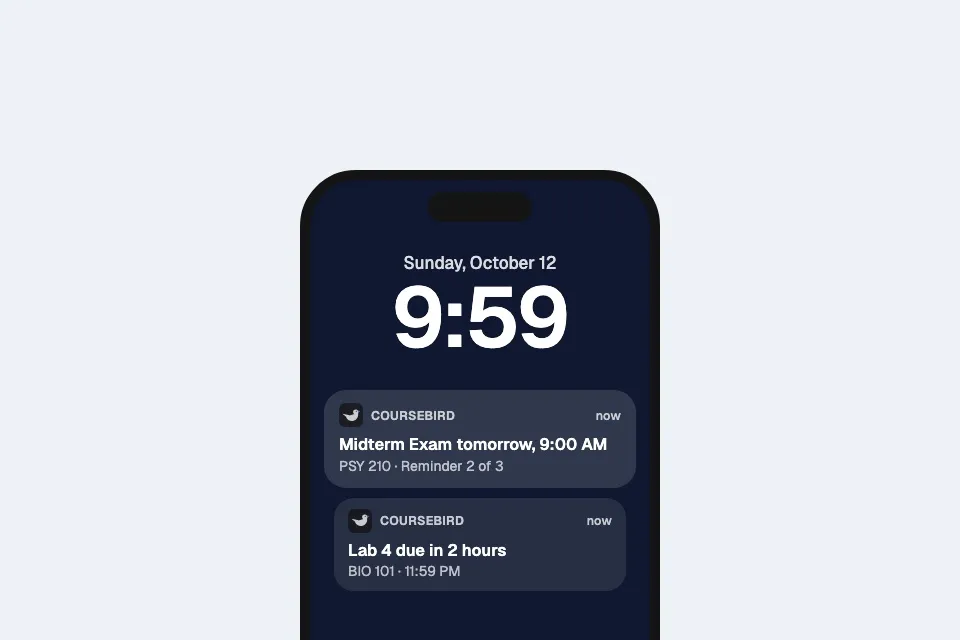
Coursebird reads the same calendar feed link, so there’s nothing for your school to set up, and it fills the two gaps above. The Coursebird iPhone app reminds you 24 hours and 2 hours before each deadline and three times for every exam, set the moment your classes come in. And it checks the link itself: right away when you open it, and now and then even while it’s closed, so when a professor moves a date you get a heads-up with the old date and the new one side by side.
It puts every class in one list, this week first, and can also put your deadlines on your iPhone calendar, in a calendar of its own that it keeps up to date as dates move. It only reads your classes, and your data stays on your phone. Coursebird is in beta and the phone app isn’t in the App Store yet. If you’d like to try it, join the list. For more on why phone notifications go quiet, see why assignment notifications don’t come.
Questions
Can I add my class calendar to my iPhone without a computer?
Yes. Open your course site in Safari on your iPhone, find the calendar feed link on its Calendar page, copy it, then add it in the Calendar app under Calendars, Add Calendar, Add Subscription Calendar. A computer only makes the link easier to find.
Why don't my assignments remind me on my iPhone?
A subscribed calendar is read-only, so you can't add an alert to its events, and the feed itself usually carries none. Check that Event Alerts is on for the calendar, then open one assignment and look for an Alert line. If there isn't one, nothing will remind you about that calendar's events.
How often does my iPhone update a subscribed calendar?
It depends on where you stored it. On My iPhone, it follows the Fetch New Data setting, as often as every 15 minutes. In iCloud, Apple's servers refresh it on their own schedule. Either way, a change can take a while to show up.
Why do I see every assignment twice?
The same feed is on your phone twice, usually once as a subscription and once through Google Calendar or an earlier import. Hide or remove one copy under Calendars in the Calendar app.